Branching and Merging
Create a Branch
Right-click the commit you want to build on and choose Branch. Give it a name and check out. You are now working on the new branch while others stay on the original.
Switch Branches
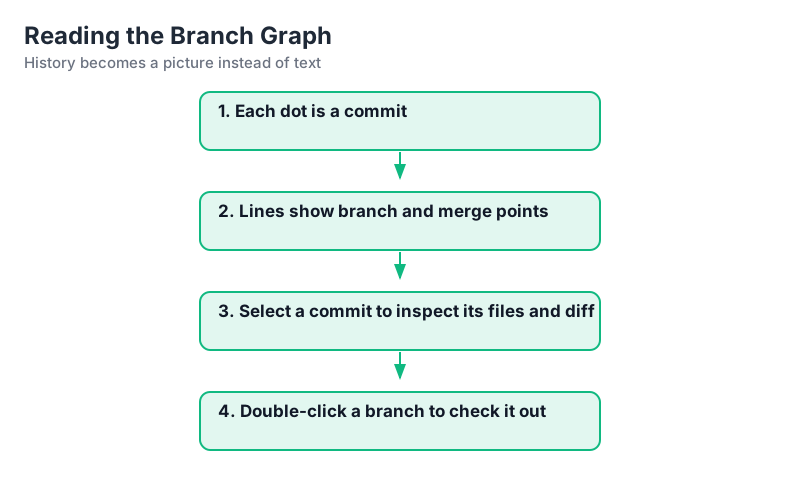
Double-click a branch in the panel to check it out. Uncommitted changes move with you when they do not conflict; otherwise commit, stash or discard first.
Merge a Branch
Check out the destination branch (say main), right-click the feature branch and choose Merge. SourceTree merges and, if there are no conflicts, creates a merge commit automatically.
Resolve Conflicts
When the same lines changed on both sides, SourceTree marks the file conflicted. Open the conflict dialog, pick theirs/theirs/mine or edit the combined file, mark resolved, then commit the merge.
Delete a Branch
Right-click a fully merged branch and choose Delete. Deleting the local branch does not touch the remote copy until you delete it there too.
Key Points
- Branch from any commit; merge back on the destination.
- Conflicts get a guided resolution dialog.
- Merge commits appear on the graph automatically.
- Delete branches only after they were merged.