
JList
Package :
Class:
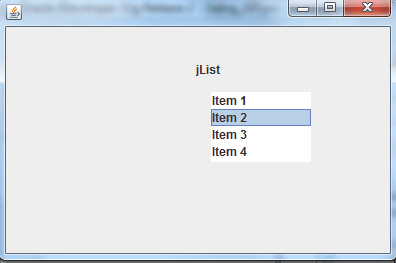
Note : JList class can be used to add a list of items with several visible rows to a container.
Javax.swing
Class:
javax.swing.JList
Note : JList class can be used to add a list of items with several visible rows to a container.
| Constructors | Description |
|---|---|
JList()
|
This Constructor creates an empty List instance with the default 8 rows visible. |
JList (Object[] ListData)
|
This Constructor creates a List instance with the specified data. |
| Method | Description |
|---|---|
void
addListSelectionListener(ListSelectionListener |
This Method specifies an event handler for the list. |
int getSelectedIndex ()
|
This Method Returns the index of the selected item. |
void setBackground (Color BackgroundColor)
|
This Method sets the background color of the list. |
void setFont (Font TextFont)
|
This Method sets the font for this component. |
void setForeground (Color TextColor) |
This Method sets the color of the text for the list. |
void setMinimum (int min) |
This Method sets the minimum value of the slider. |
void setListData (Object[] ListData) |
This Method adds the specified data to the list . |
void SetSelectedIndex (int Selection) |
This Method sets the index of the selected item. . |
Example :
package client;

import java.awt.Dimension;
import java.awt.Rectangle;
import javax.swing.JFrame;
import javax.swing.JLabel;
import javax.swing.JList;

public class Frame1  extends JFrame
{
	String  listData[] = {"Item 1","Item 2","Item 3","Item 4"};
	private JList jList1 = new JList(listData);
	private JLabel jLabel1 = new JLabel();
	public Frame1()
	{
	   	try
	   	{
	       	jbInit();
		}
		catch (Exception e)
		{
	       	e.printStackTrace();
		}
	}
	private void jbInit() throws Exception
	{
	    this.getContentPane().setLayout( null );
	    this.setSize(new Dimension(400, 264));
	    jList1.setBounds(new Rectangle(205, 65, 100, 70));
	    jLabel1.setText("jList");
	    jLabel1.setBounds(new Rectangle(190, 30, 65, 25));
	    this.getContentPane().add(jLabel1, null);
	    this.getContentPane().add(jList1, null);
	}
    public static void main(String agrs[])
    {
    	Frame1 frame=new Frame1();
    	frame.setVisible(true);
    }
}
Output :
JTable
Package :
Class:
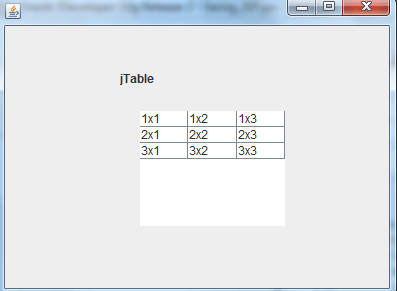
Note :JTable class use to create tables for a GUI based application.
Javax.swing
Class:
javax.swing.JTable
Note :JTable class use to create tables for a GUI based application.
| Constructors | Description |
|---|---|
public JTable()
|
This Constructor creates an instance of the JTable class that is initialized with a default data model,column model, and selection model. |
public JTable(TableModel model)
|
This Constructor creates an instance of the JTable class that is initialized with a default column model and selection model, and with the specified data model. |
| Method | Description |
|---|---|
getRowCount() |
Invoked by the table object and returns the number of rows present in that table. |
getColumnCount()
|
Returns the number of columns present in table. |
getColumnName(int i)
|
Takes the index number of column number as its argument and return the name. |
getTableHeight()
|
Return the length of table in pixel. |
getSelectedColumn() |
Returns the index number of column which is selected on GUI. |
getSelectedColumn |
Return an Array of Integers and contains the index number of all selected columns. |
getSelectedRows() |
Returns an Array of integer and contains the index number of all selected rows. |
setValueAt(Object data,int row_index,int
column_index |
Used to put the data in specified position of the table. |
Example:
package project1;

import java.awt.Dimension;
import java.awt.Rectangle;
import javax.swing.JFrame;
import javax.swing.JLabel;
import javax.swing.JTable;

public class Frame1 extends JFrame
{
	Object rowData[][] = { { "1x1", "1x2", "1x3" }, { "2x1", "2x2", "2x3" },
							{"3x1","3x2","3x3"}};
	Object columnNames[] = { "Col 1", "Col 2", "Col 3" };
	JTable table = new JTable(rowData, columnNames);
	private JLabel jLabel1 = new JLabel();
	public Frame1()
	{
		try
		{
	       	jbInit();
		}
		catch (Exception e)
		{
	       	e.printStackTrace();
		}
	}
	private void jbInit() throws Exception
	{
		this.getContentPane().setLayout( null );
		this.setSize( new Dimension(400, 300) );
		table.setBounds(new Rectangle(135, 85, 145, 115));
		jLabel1.setText("jTable");
		jLabel1.setBounds(new Rectangle(115, 45, 90, 15));
		this.getContentPane().add(jLabel1, null);
		this.getContentPane().add(table, null);
	}
	public static void main(String[] args)
	{
    	Frame1 obj = new Frame1();
		obj.setVisible(true);
	}
}
JTree
Package :
Class:
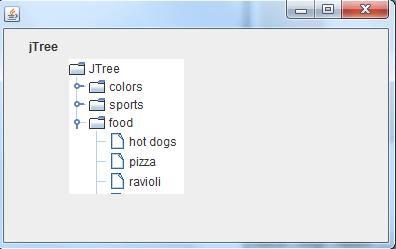
Note :JTree implements the grahical tree structure and this structure to display the various nodes in hierarchical manner,each node represents the data.
Javax.swing
Class:
javax.swing.JTree
Note :JTree implements the grahical tree structure and this structure to display the various nodes in hierarchical manner,each node represents the data.
| Constructors | Description |
|---|---|
JTree()
|
This constructor returns a JTree with a sample model. |
JTree(Object[] value)
|
This Constructor returns a JTree with each element of the specified array as the child of a new root node which is not displayed. |
JTree(TreeModel newModel)
|
This Constructor returns an instance of JTree which displays the root node -- the tree is created using the specified data model. |
| Method | Description |
|---|---|
add(Object node) |
Invoked by the root node in order to add a node to root node. |
getNewLeadSelectionPath()
|
Returns the tree path object. |
getLastPathcomponent()
|
Returns the item or element that is selected by the user. |
getPathCount()
|
Invoked to know the number of paths available in node. |
Example :
package client;

import java.awt.Dimension;
import java.awt.Rectangle;
import javax.swing.JFrame;
import javax.swing.JLabel;
import javax.swing.JTree;

public class Frame1  extends JFrame
{
	private JTree jTree1 = new JTree();
	private JLabel jLabel1 = new JLabel();
	public Frame1()
	{
		try
		{
	    	jbInit();
		}
		catch (Exception e)
		{
	    	e.printStackTrace();
		}
	}
	private void jbInit() throws Exception
	{
		this.getContentPane().setLayout( null );
		this.setSize(new Dimension(400, 264));
		jTree1.setBounds(new Rectangle(65, 30, 115, 135));
		jLabel1.setText("jTree");
		jLabel1.setBounds(new Rectangle(25, 10, 50, 15));
		this.getContentPane().add(jLabel1, null);
		this.getContentPane().add(jTree1, null);
	}
	public static void main(String agrs[])
	{
        Frame1 frame=new Frame1();
        frame.setVisible(true);
    }
}
Output :
JComboBox
Package :
Class:
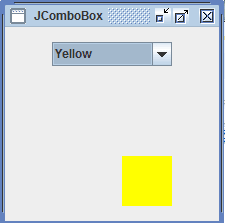
Note :JComboBox class used to add a drop-down list of items to a container.
Javax.swing
Class:
javax.swing.JComboBox
Note :JComboBox class used to add a drop-down list of items to a container.
| Constructors | Description |
|---|---|
JComboBox()
|
This constructor creates an empty JComboBox instance. |
JComboBox(Object [] Items)
|
This Constructor creates a JComboBox instance that contains the elements in the specified array. |
| Method | Description |
|---|---|
addItem() |
Invoked by combo box object to add item to combo box. |
getSelectedIndex ()
|
This method returns the index of the selected item. |
RemoveItem()
|
Use to remove the seleted item from combo box. |
removeAll()
|
Use to remove all the element present in combo box. |
Example :
import javax.swing.*;
import java.awt.*;
import java.awt.Color;
import java.awt.event.*;

public class Frame3 implements  ActionListener
{
	JComboBox colorChooser;
	JPanel redbox, bluebox, greenbox, yellowbox;
	public JPanel createContentPane ()
	{
		JPanel GUI = new JPanel();
		// To create a JComboBox.
		// This gives the ComboBox the list of selections you can make.
		String colors[] = {"Red", "Blue", "Green", "Yellow"};
		colorChooser = new JComboBox(colors);
		colorChooser.setSelectedIndex(1);
		colorChooser.addActionListener(this);
		JPanel boxPanel = new JPanel(new GridLayout(2, 2, 20, 20));
		redbox = createSquareJPanel(Color.red, 50);
		bluebox = createSquareJPanel(Color.blue, 50);
		greenbox = createSquareJPanel(Color.green, 50);
		yellowbox = createSquareJPanel(Color.yellow, 50);
		redbox.setVisible(false);
		greenbox.setVisible(false);
		yellowbox.setVisible(false);
		boxPanel.add(redbox);
		boxPanel.add(bluebox);
		boxPanel.add(greenbox);
		boxPanel.add(yellowbox);
		JPanel bottomPanel = new JPanel();
		bottomPanel.setLayout(new BoxLayout(bottomPanel, BoxLayout.PAGE_AXIS));
		bottomPanel.add(Box.createRigidArea(new Dimension(0,10)));
		bottomPanel.add(colorChooser);
		bottomPanel.add(Box.createRigidArea(new Dimension(0,20)));
		bottomPanel.add(boxPanel);
		bottomPanel.add(Box.createRigidArea(new Dimension(0,10)));
		GUI.add(bottomPanel);
		GUI.setOpaque(true);
		return GUI;
	}

	//  we create a square JPanel of a colour and set size
	// specified by the arguments in this method.

	private JPanel createSquareJPanel(Color color, int size)
	{
		JPanel Panel = new JPanel();
		Panel.setBackground(color);
		Panel.setMinimumSize(new Dimension(size, size));
		Panel.setMaximumSize(new Dimension(size, size));
		Panel.setPreferredSize(new Dimension(size, size));
		return Panel;
	}

	// This actionPerformed simply takes sets the visibility of each
	// coloured box depending on what is selected on the combo box.

	public void actionPerformed(ActionEvent e)
	{
		int temp;
		if(e.getSource() == colorChooser)
		{
			temp = colorChooser.getSelectedIndex();
			switch(temp)
			{
				case 0:
						redbox.setVisible(true);
						bluebox.setVisible(false);
						greenbox.setVisible(false);
						yellowbox.setVisible(false);
						break;
				case 1:
						redbox.setVisible(false);
						bluebox.setVisible(true);
						greenbox.setVisible(false);
						yellowbox.setVisible(false);
						break;
						case 2:
						redbox.setVisible(false);
						bluebox.setVisible(false);
						greenbox.setVisible(true);
						yellowbox.setVisible(false);
						break;
				case 3:
						redbox.setVisible(false);
						bluebox.setVisible(false);
						greenbox.setVisible(false);
						yellowbox.setVisible(true);
						break;
			}
		}
	}
	private static void createAndShowGUI()
	{
		JFrame.setDefaultLookAndFeelDecorated(true);
		JFrame frame = new JFrame(" JComboBox");
		Frame3 demo = new Frame3();
		frame.setContentPane(demo.createContentPane());
		frame.setDefaultCloseOperation(JFrame.EXIT_ON_CLOSE);
		frame.pack();
		frame.setVisible(true);
	}
	public static void main(String[] args)
	{
		//Schedule a job for the event-dispatching thread:
		//create and show this application's GUI.

		SwingUtilities.invokeLater(new Runnable()
		{
			public void run()
			{
				createAndShowGUI();
			}
		});
	}
}
Output :
JProgressBar
Package :
Class:
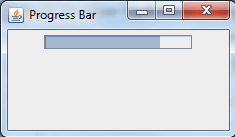
Note : It indicate how much percentage of an executing process is completed or remaining.
Javax.swing
Class:
javax.swing.JProgressBar
Note : It indicate how much percentage of an executing process is completed or remaining.
| Constructors | Description |
|---|---|
JProgressBar()
|
This constructor creates a horizontal progress bar that displays a border but no progress string. |
JProgressBar(int x)
|
This Constructor creates a progress bar with the specified orientation, which can be either JProgressBar.VERTICAL or JProgressBar.HORIZONTAL. |
| Method | Description |
|---|---|
getMinimum() |
This Method used to get least value of progress bar. |
getMaximum()
|
This method used to get the optimum value of progress bar. |
getOrientation()
|
This method used to get orientation of progress bar. |
setOrientation()
|
This method used to set orientation of progress bar. |
setStringPainted()
|
This method used to display the percentage of progress of task bar. |
Example :
import javax.swing.JFrame;
import javax.swing.JPanel;
import javax.swing.JProgressBar;
import javax.swing.SwingUtilities;

public class Frame4 extends JPanel
{
	JProgressBar progress;
	static final int MY_MIN = 0;
	static final int MY_MAX = 100;
	public Frame4()
	{
	    progress = new JProgressBar();
	    progress.setMinimum(MY_MIN);
	    progress.setMaximum(MY_MAX);
	    add(progress);
	}
	public void updateBar(int newValue)
	{
		progress.setValue(newValue);
	}
	public static void main(String args[])
	{
		final Frame4 it = new Frame4();
		JFrame frame = new JFrame("Progress Bar");
		frame.setDefaultCloseOperation(JFrame.EXIT_ON_CLOSE);
		frame.setContentPane(it);
		frame.pack();
		frame.setVisible(true);
		for (int i = MY_MIN; i <= MY_MAX; i++)
		{
			final int percent = i;
			try
			{
				SwingUtilities.invokeLater(new Runnable()
				{
					public void run()
					{
						it.updateBar(percent);
					}
				});
				java.lang.Thread.sleep(100);
			}
			catch (InterruptedException e)
			{
				;
			}
		}
	}
}
Output :