JMF Configuration in Eclipse
- Step-1 Download jmf jar file from http://www.oracle.com/technetwork/java/javase/download-142937.php
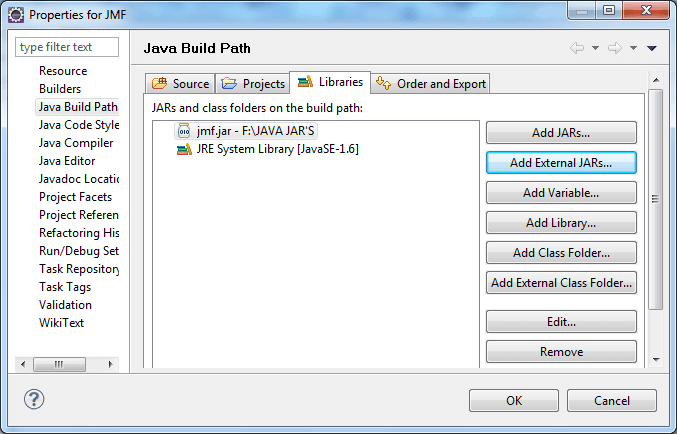
- Step-2 Add jmf.jar into classpath by rightclick on project >> properties >> java buildpath >> add external jars >> browse for jmf.jar >> click OK.
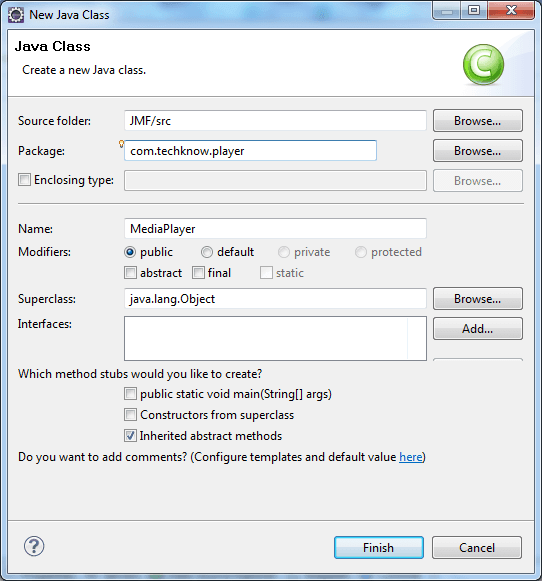
- Step-3 Create java class by right-click on project >> New >> class >> class name >> finish.
Example Of Audio Player Through Console
AudioPlayer.java
package com.techknow;


import javax.media.*;

import java.io.File;
import java.io.IOException;
import java.net.URL;
import java.net.MalformedURLException;

public class AudioPlayer
{
    /**
     * The Player object which is
     * used to play an audio file.
     */
    private Player audioPlayer = null;
    public AudioPlayer(URL url)
    	throws IOException, NoPlayerException,
        CannotRealizeException {
        audioPlayer = Manager.createRealizedPlayer(url);
    }

    public AudioPlayer(File file)
    	throws IOException, NoPlayerException,
        CannotRealizeException {
        this(file.toURL());
    }

    /**
     * Plays the audio file.
     */
    public void play() {
        audioPlayer.start();
    }

    /**
     * Stops and closes the audio file.
     */
    public void stop() {
        audioPlayer.stop();
        audioPlayer.close();
    }
    public static void printUsage() {
        System.out.println
        ("Usage: java SimpleAudioPlayer audioFile");
    }

    public static void main(String[] args) {
        try {

                /* Creates and uses a file reference
                * for the audio file, if a url reference
                * is desired, then this line needs to
                * change.
                */
                File audioFile = new File
                ("D:\\01 Don_t Phunk With My Heart.mp3");
                AudioPlayer player = new
                AudioPlayer(audioFile);

                System.out.println();
                System.out.println("-> Playing file '" +
					audioFile.getAbsolutePath() + "'");
                player.play();
                System.out.println
                ("Press the Enter key to exit");


                // wait for the user to
                // press Enter to proceed.
                System.in.read();
                System.out.println("-> Exiting");
                player.stop();

        } catch (Exception ex) {
            ex.printStackTrace();
        }

        System.exit(0);
    }
}
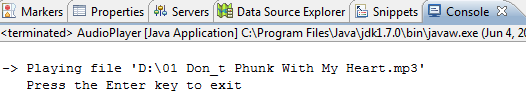
Output